
Add OnYourMark.app to Your Phone
OnYourMark.app works great right in your browser — but you can also add it to your Home Screen so it feels like a real app. That means one-tap access, a cleaner full-screen view, and it stays handy during game night. Use it for whenever you want to start a new game.
What This Does
- No App Store install. This is a web app shortcut.
- One-tap launch. It opens from your Home Screen like an app icon.
- Less browser clutter. It typically opens in a clean, app-like view.
iPhone / iPad (Safari Only)
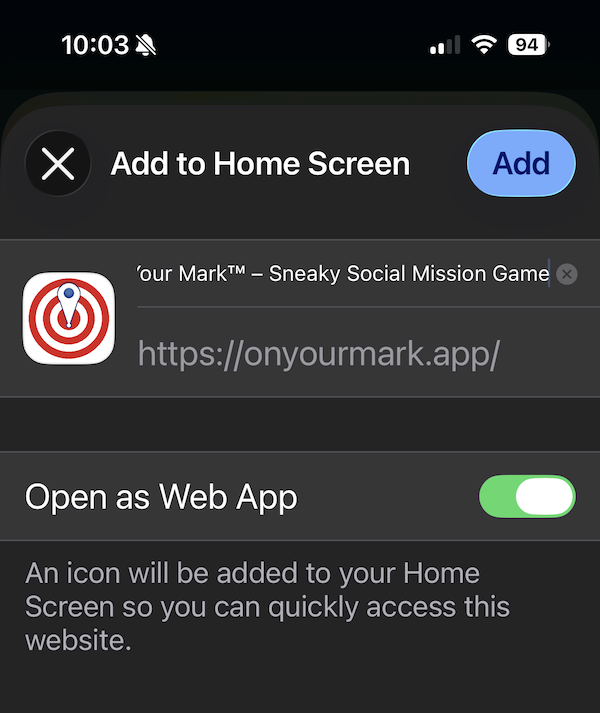
- Open OnYourMark.app in Safari (this won’t work from Chrome or some in-app browsers).
- Tap the Share icon (a square with an ↑ arrow).
- Scroll and tap Add to Home Screen.
- Optionally edit the name, then tap Add.
Tip: If you don’t see “Add to Home Screen,” make sure you’re in Safari and not inside another app’s built-in browser.
Android (Chrome)
- Open OnYourMark.app in Chrome.
- Tap the 3-dot menu (top right).
- Tap Add to Home screen or Install app (wording varies by device).
- Confirm by tapping Add (or Install).
Tip: If you don’t see the install option, try refreshing the page or opening it in Chrome directly (not from a text-message preview).
Quick Troubleshooting
- Use the right browser: Safari on iPhone/iPad, Chrome on Android.
- Avoid in-app browsers: If you opened the link from Instagram/Facebook/etc., tap “Open in Safari/Chrome.”
- Make sure you’re on the live domain: The shortcut should point to https://OnYourMark.app - not a game you're currently playing (you could do that, but it won't help you start new games).
Once it’s added, you’ll see the OnYourMark icon on your Home Screen — tap it anytime to jump back into the game.